Terraform v1.10 S3 Backend and State-Lock
Terraform Version 1.10 Link to heading
If you’re a DevOps engineer who uses Terraform to write Infrastructure as Code, you should be thrilled about Terraform’s latest update, S3 State-Lock. Previously, if we wanted to use AWS as our destination for statefile backend and state locking, we needed to provision both S3 and DynamoDB. Provisioning S3 as a Terraform Backend is super easy. We can simply run the command
aws s3 mb s3://<BUCKET NAME>
and we get a unique S3 Bucket that we can use for storing our statefiles. DynamoDB needs to be configured with a key-schema, Read and Write Capacity, and attribute definitions.That command is
aws dynamodb create-table --table-name <TABLE NAME> --attribute-definitions AttributeName=LockId,AttributeType=S --key-schema AttributeName=LockID,KeyType=HASH --provisioned-throughput ReadCapacityUnits=5,WriteCapacityUnits=5
using the AWS CLI. But with the new Terraform Version, we don’t need to provision DynamoDB. This is because Terraform is using S3’s Object Lock and SSE-S3 or Server Side Encryption.
Instructions Link to heading
To maintain Operational Excellence, we need to perform our Operations as Code. You’re going to need to install the AWS CLI and Terraform. As of today, the latest update is v1.10.4. I’m going to assume you know how to install these programs and you have used AWS
S3 Setup Link to heading
The first thing we need to do is create our S3 bucket for Terraform S3 Backend. If you already have an S3 bucket, you can skip this step.
aws s3 mb s3://<BUCKET_NAME>
S3 Object Lock Link to heading
Adding Object Lock to an S3 bucket prevents accidental or malicious deletion. S3 Object Lock automatically applies S3 Versioning as an addition safety measure. Versioning on an S3 bucket is useful in case you delete an object. You can go back to the previous version of the object in case of accidental deletion. When you delete an object, you’re actually deleting a version marker. Please be advised that if you want to delete the S3 bucket, you’re going to need to disable Versioning and then delete all the objects in the S3 bucket. Otherwise, AWS will send an error saying there are versions in the S3 bucket.
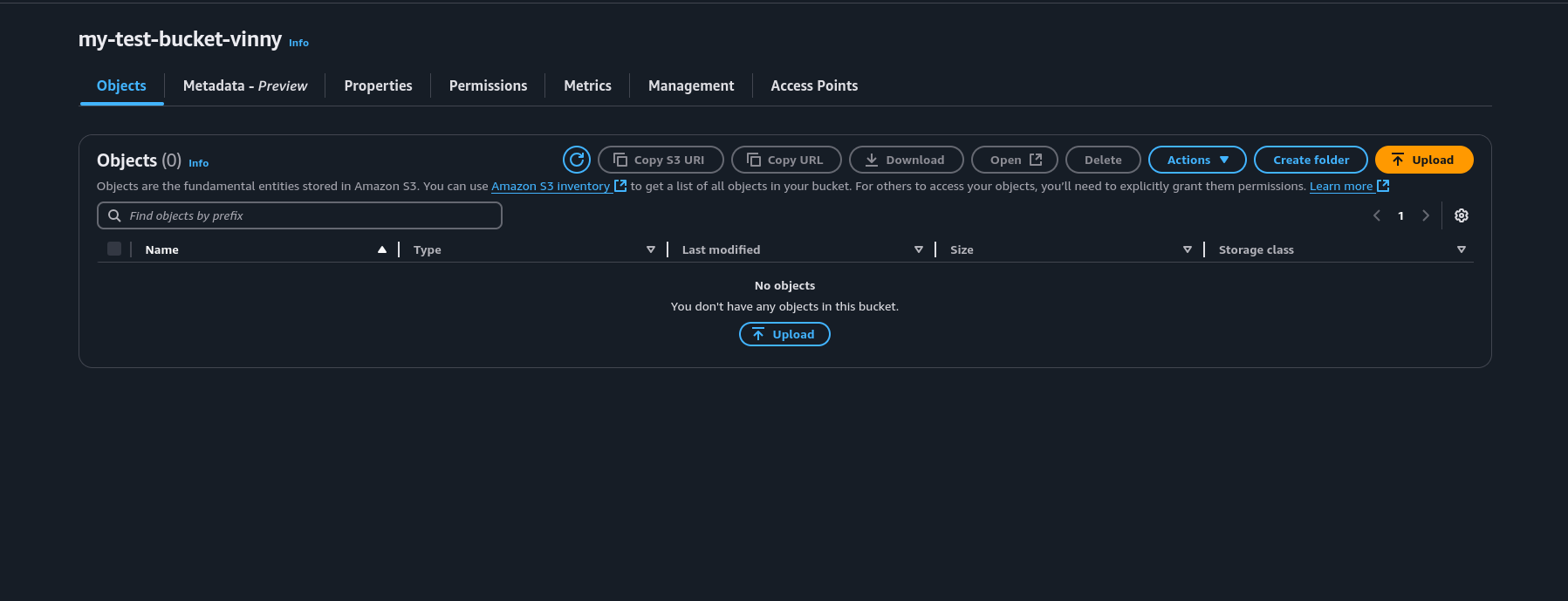
To add Object Lock on an S3 bucket, we need to enable versioning first. I created a test bucket called my-test-bucket-vinny. Let’s add versioning to this S3 Bucket via the console.
S3 Versioning and Object Lock via S3 Console Link to heading
Click on your S3 Bucket in the S3 Console.
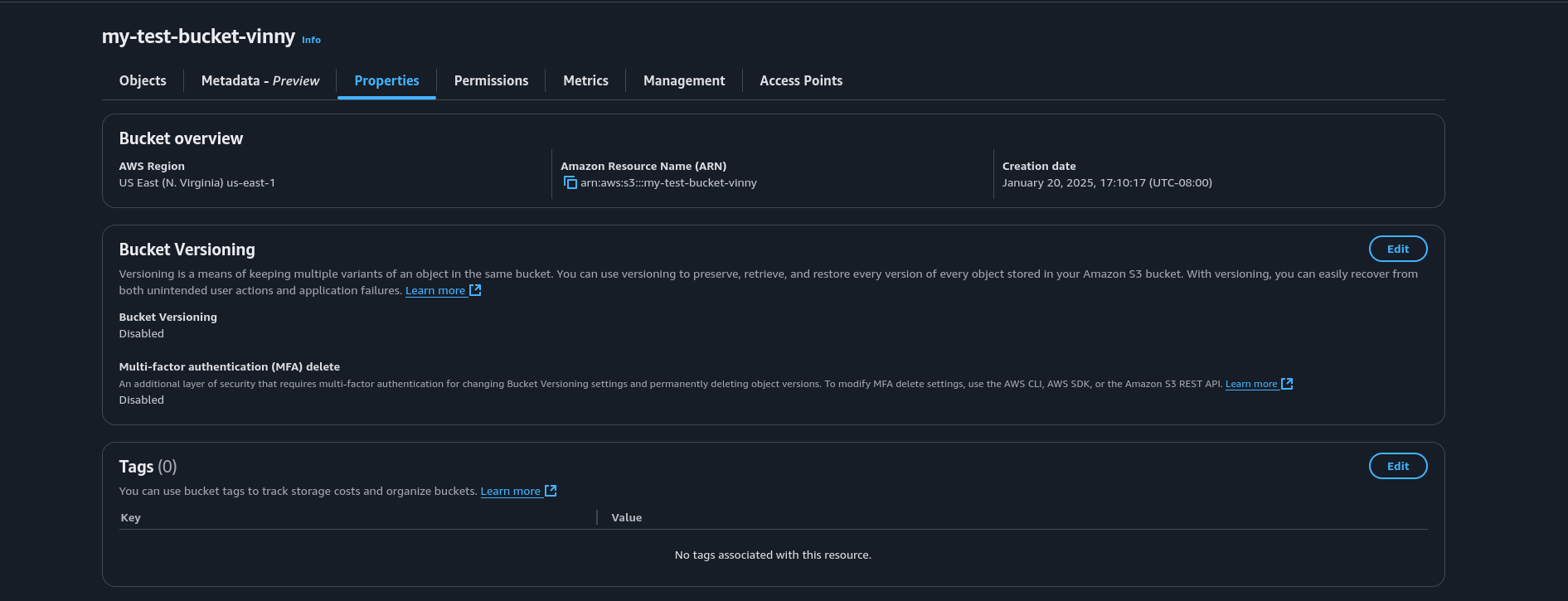
Go to Properties and find the section that says Bucket Versioning. Click the Edit button.
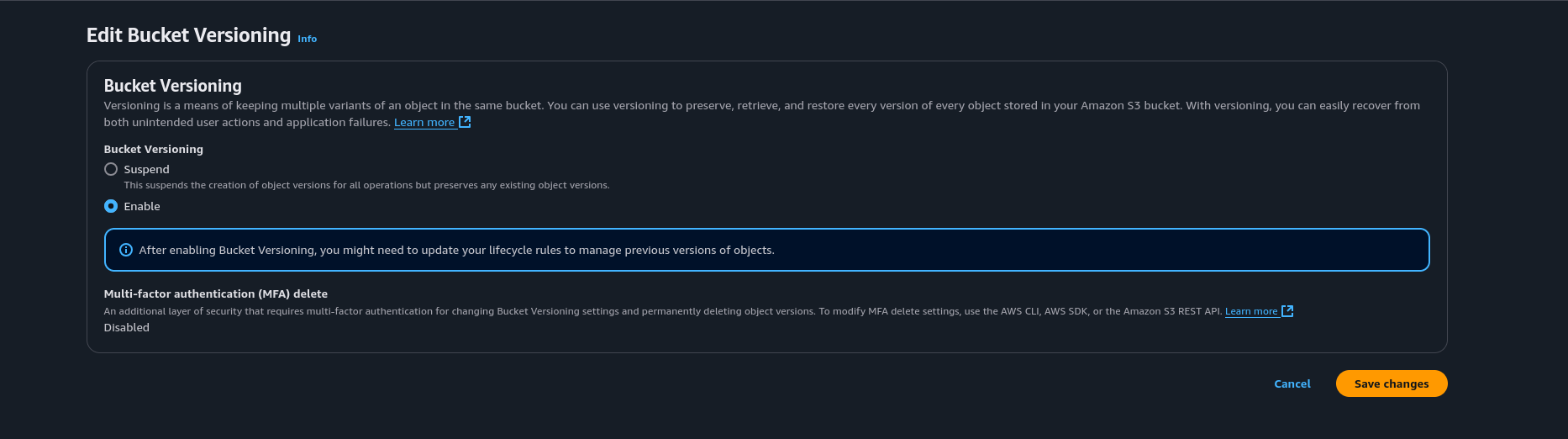
Now enable Versioning on the S3 Bucket and click Save.
In the Properties Section, scroll down to the section that says Object Lock. Click the Edit button.


Enable Object Lock and click on the check box that says I acknowledge that enabling Object Lock will permanently allow objects in this bucket to be locked.
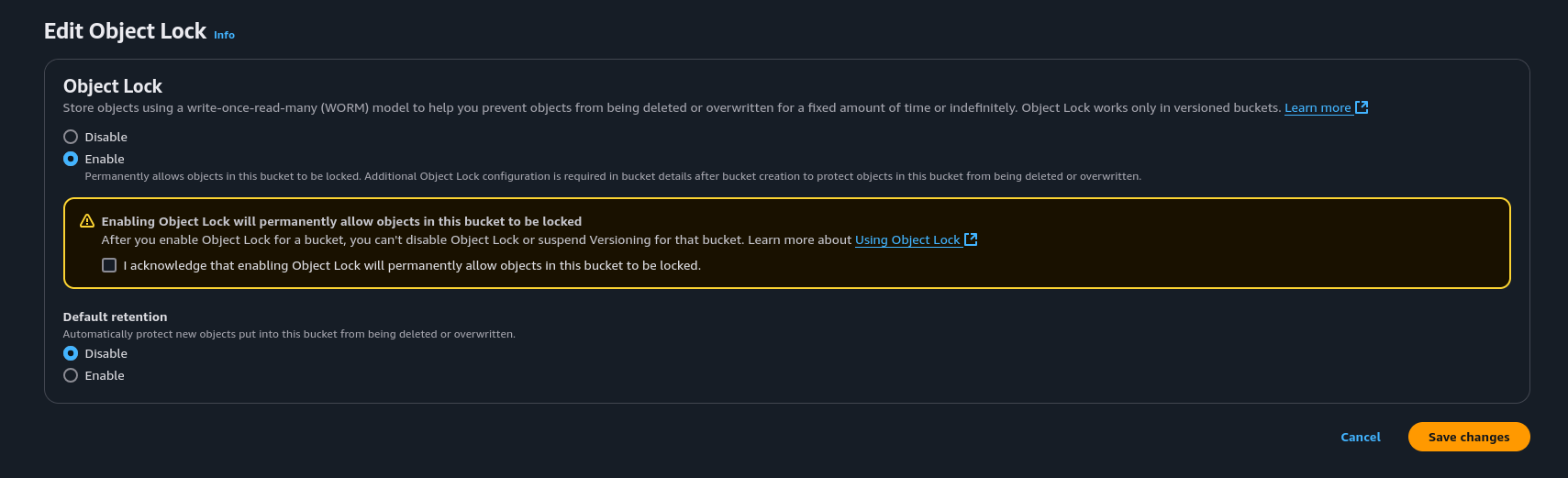
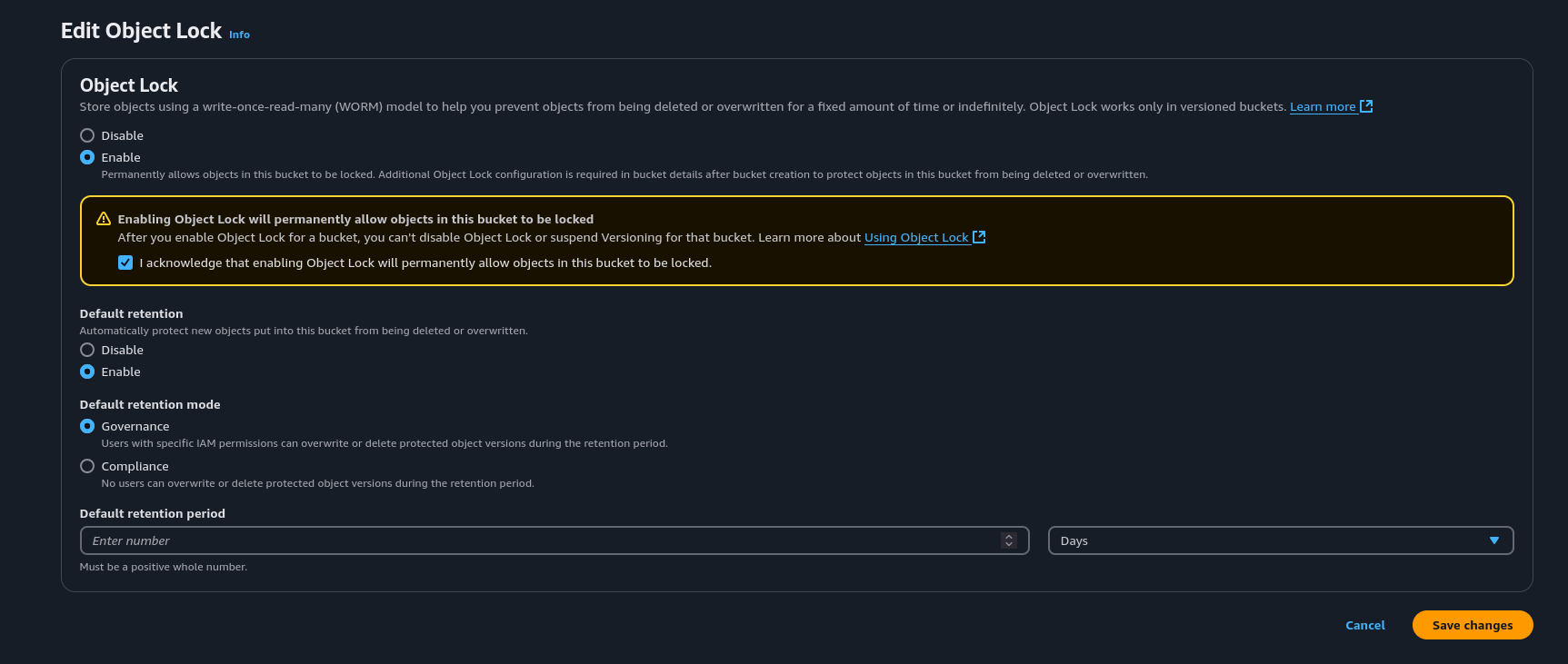
Enable Default Retention and set the Default retention mode to Governance. The main reason for Governance is I want to be able to delete lock files in case one of terraform resources fails and doesn’t unlock or I accidentally Ctrl+C terraform when its doing an apply.
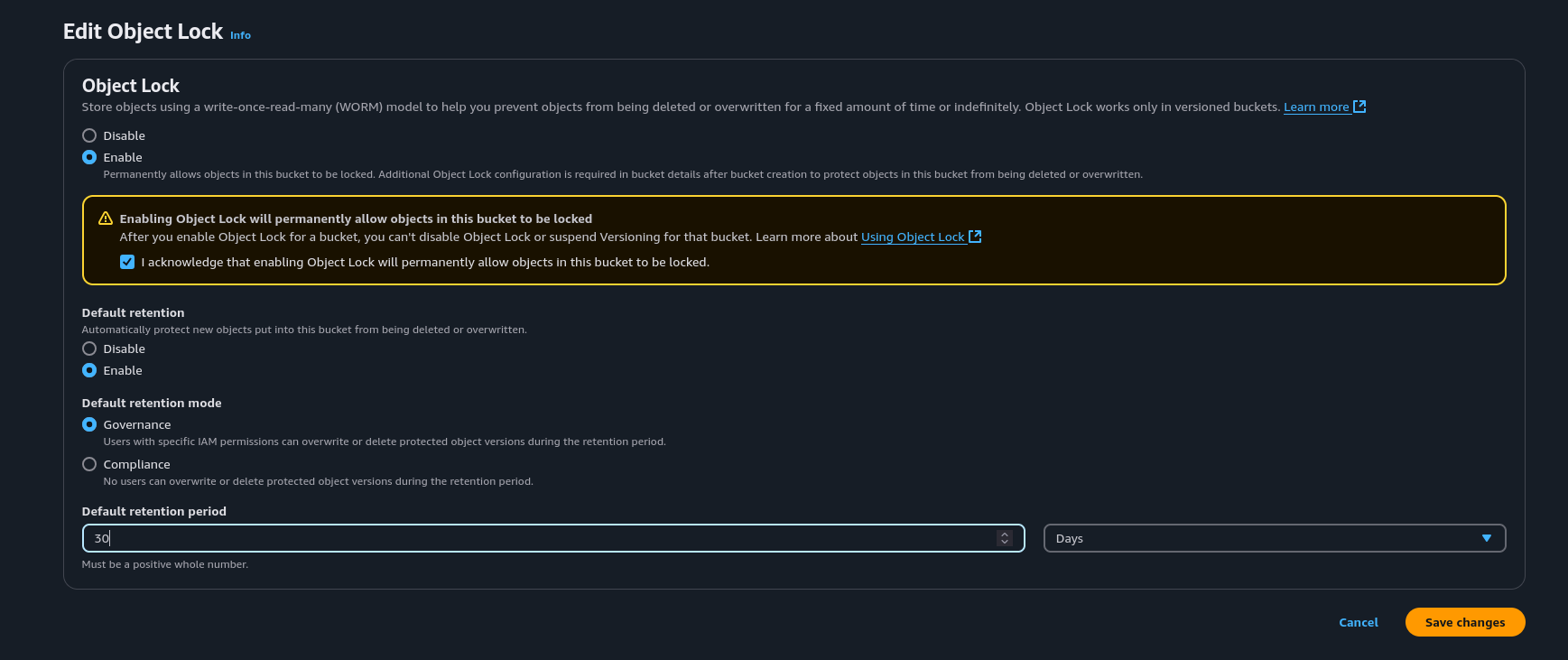
S3 Versioning vnd Object Lock via AWS CLI Link to heading
We can also add versioning and object lock to our S3 bucket via the AWS CLI.
aws s3api put-bucket-versioning --bucket <S3 BUCKET> --versioning-configuration Status=Enabled

aws s3api put-object-lock-configuration --bucket <S3 BUCKET> --object-lock-configuration '{
    "ObjectLockEnabled": "Enabled",
    "Rule": {
        "DefaultRetention": {
            "Mode": "GOVERNANCE",
            "Days": 30
        }
    }
}'
Terraform Configuration File Link to heading
Now that we have setup our S3 Bucket with versioning and object lock, we can write our terraform configuration file. I write the terraform configuration in a file called terraform.tf.
terraform {
  backend "s3" {
    bucket       = <S3 Bucket Name>
    key          = "terraform.tfstate"
    region       = "us-east-1"
    encrypt      = true
    use_lockfile = true
  }

  required_providers {
    aws = {
      source  = "hashicorp/aws"
      version = "5.84.0"
    }
  }
}
Notice the line that says use_lockfile. This replaces the parameter dynamodb_table which points to a DynamoDB Table for state locking.
Terraform State-Lock Test Link to heading
Let’s create a simple S3 Bucket using the S3 Module. Create a file called s3.tf in the same directory of the terraform.tf configuration file.
module "s3-bucket" {
  source        = "terraform-aws-modules/s3-bucket/aws"
  version       = "4.4.0"
  bucket        = <S3 Bucket Name>
  force_destroy = true
}
Now that we have created our s3.tf file, we need to initialize Terraform to pull down the provider and the module. We can do that by typing the terraform init command. After that, lets do a terraform apply. Before we type yes, let’s go to the S3 Backend.
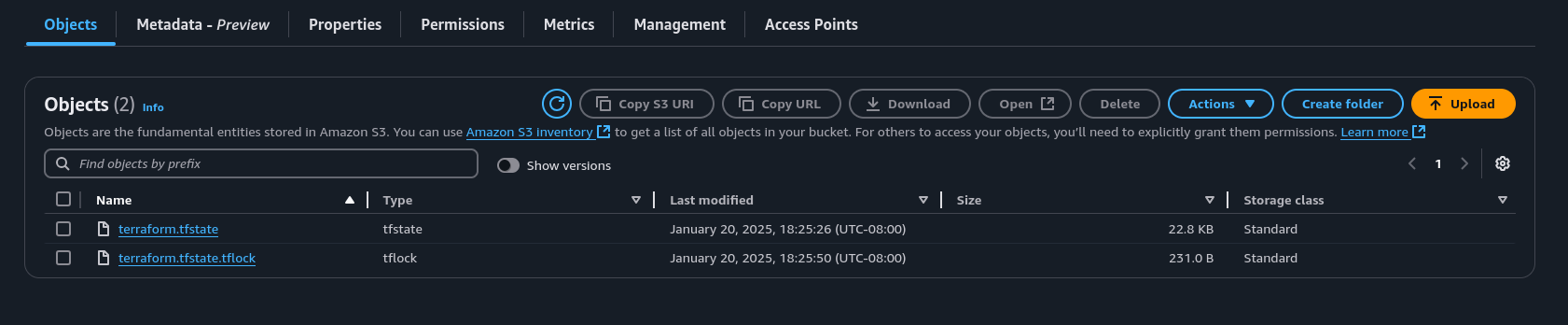 Here we can see a file called terraform.tfstate.tflock. This is the state locking file that we setup in the previous steps.